

Background Remover
Remove image backgrounds and keep every useful detail
Use an online background remover powered by the Ideogram model to isolate products, people, artwork, and generated subjects in a few clicks. Upload one image, run automatic background removal, and download a transparent PNG that can move directly into your store, campaign, presentation, or design file.
Detailed subject isolation
Clean edges for hair, fabric, products, and irregular shapes
A useful background remover must do more than separate a simple object from a flat wall. Real images include flyaway hair, soft fabric, narrow gaps, curved surfaces, accessories, and shadows near the subject. The Ideogram background removal model analyzes the complete image so these boundaries can be retained in the transparent output.
This is particularly helpful for fashion images, portraits, furniture, footwear, artwork, pets, and product photography. Instead of drawing a path around every contour, use the automatic background remover as the first production step, inspect the PNG at full size, and continue with the final composition.
How it works
From source image to transparent asset
The background remover uses the same focused workflow as the image generator: upload, process, review, and download. No separate editing application or manual mask is required.
Upload one image
Choose a JPG, PNG, or WebP with a clear subject. The background remover works with product photos, portraits, animals, artwork, and generated images, so you can start from the file already used in your design workflow.
Remove the background
Start the background removal job and let the Ideogram model identify the main subject. Fine boundaries, interior gaps, fabric, hair, and object contours are processed without requiring a brush, mask, or manual selection.
Download a transparent PNG
Review the isolated subject on the transparency grid, then download the result. The background remover returns a PNG that is ready for layouts, product listings, social graphics, presentations, and further image editing.
Better results
Prepare source images for cleaner background removal
The Ideogram model handles varied scenes, but source quality still affects the finished boundary. These checks help the background remover produce a more useful transparent asset.
Give the subject enough space
Choose a source where the complete subject is visible and important edges are not cut off by the frame. A background remover can identify the boundary more reliably when shoes, hair, handles, sleeves, packaging, or other defining parts remain inside the image. For products, leave a little space around the item instead of cropping directly against its outline.
Use clear light and visible contrast
Images do not need a studio background, but the subject should be readable. Strong motion blur, deep shadow, and nearly identical foreground and background colors can hide the real edge. When possible, select a sharper exposure with balanced light. Better visual separation helps automatic background removal preserve detail without removing parts that belong to the subject.
Check transparent and solid previews
Inspect the result on the checkerboard first, then place it over a dark and a light color in your design application. This reveals pale fringes, missed interior gaps, and semi-transparent material that may be hard to see in one preview. The background remover output is a production asset, so review it at the size and background used in the final layout.
Before & After
Background removal examples
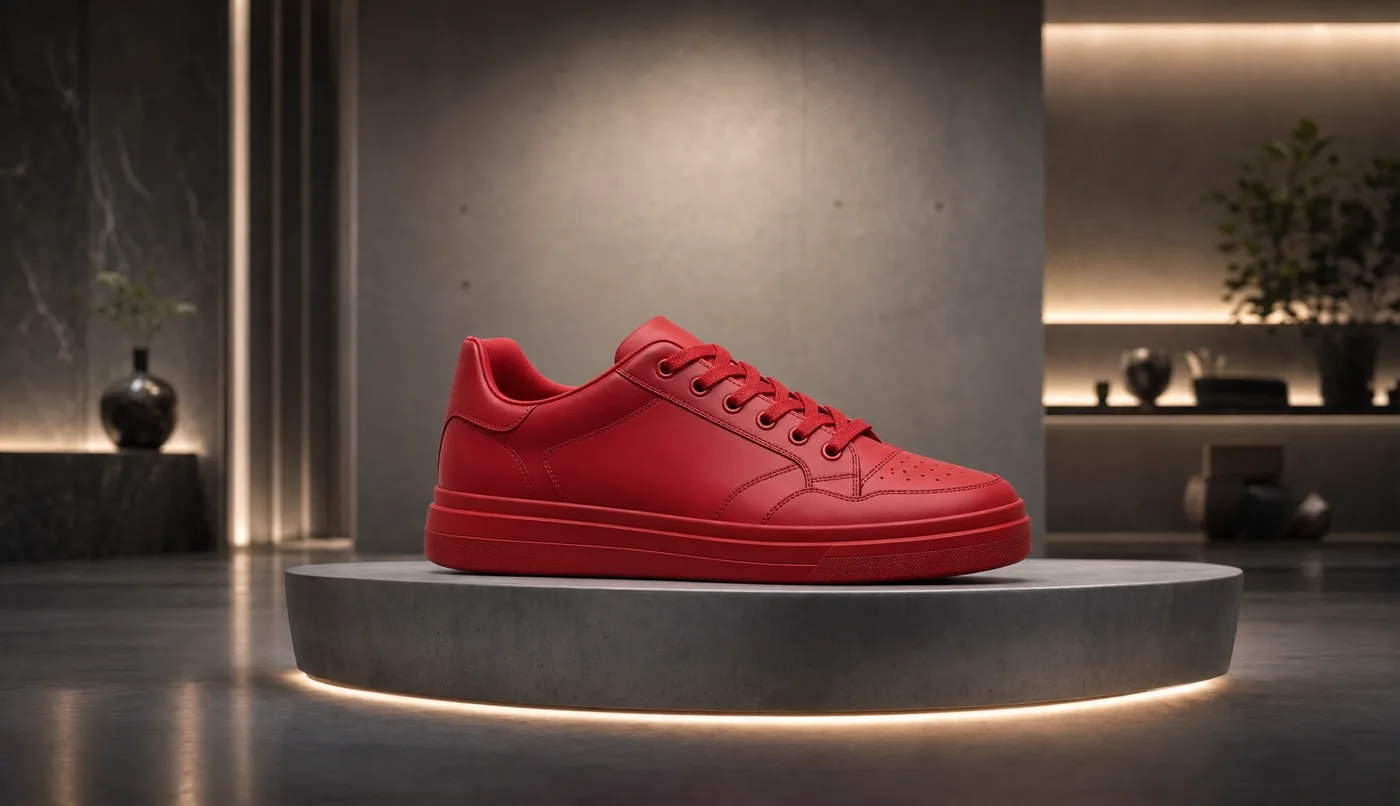
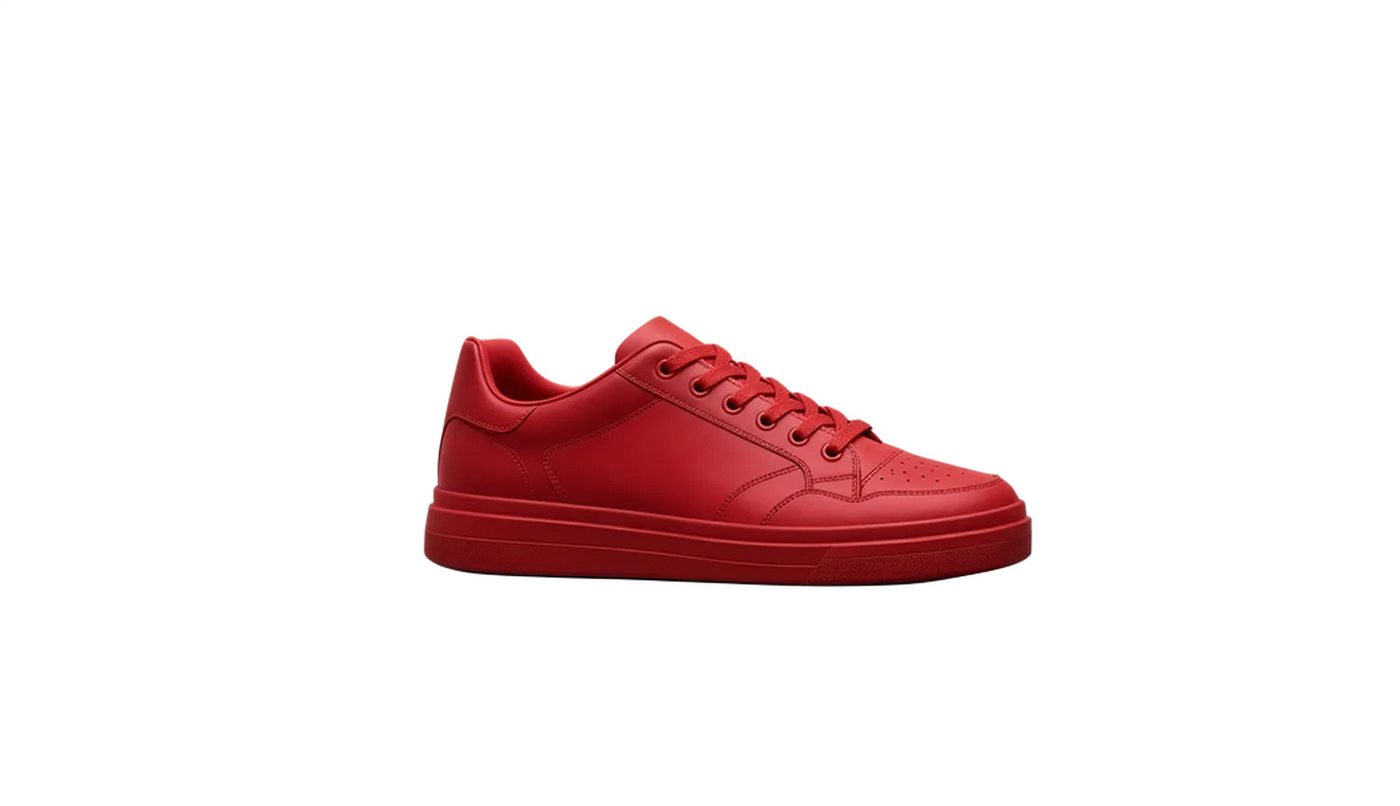
Compare the original images with their transparent PNG results across product photography, detailed fashion imagery, and portraits.




Use cases
One background remover for everyday visual production
Transparent assets are easier to reuse. Start with a clean subject, then adapt the background, format, typography, and layout for each channel without repeating the original photography.
Product listings
Use the background remover to isolate shoes, accessories, electronics, furniture, and packaged goods. Place the transparent product on a consistent studio color or marketplace-ready white background without reshooting every item.
Portraits and profile images
Remove a distracting location from headshots, creator portraits, team photos, and profile images. A transparent background makes it easier to reuse the same person across websites, thumbnails, speaker cards, and social posts.
Ads and campaign layouts
Separate the subject before building banners, display ads, email graphics, or launch visuals. The background remover gives designers room to change color, typography, and composition while keeping the original subject intact.
Generated images
Clean up an AI-generated character, object, or visual created with Ideogram 4.0. Background removal turns the result into a reusable layer for posters, mockups, stickers, collages, and multi-scene creative work.
Ideogram workflow
Background removal that fits the rest of your image workflow
This background remover is connected to the same creation system used for Ideogram 4.0 and the other available image models. Your uploaded source is handled through the existing file flow, the task runs through the shared generation workflow, and the finished transparent image is saved to history. That keeps image generation and background removal in one account instead of splitting assets across unrelated tools.
The dedicated Ideogram endpoint focuses on removing the background rather than generating a new scene. It preserves the source subject and produces a reusable transparent layer. You can then combine that result with an Ideogram 4.0 poster, product composition, social visual, or any design that needs a clean foreground subject.
FAQ
Background remover questions
Answers about transparent PNG output, source images, detailed edges, the Ideogram endpoint, credits, and saved results.
Create a transparent image now
Upload your image to the background remover, isolate the subject with the Ideogram model, and download a transparent PNG for your next product page, portrait, ad, or design.
Open background remover